
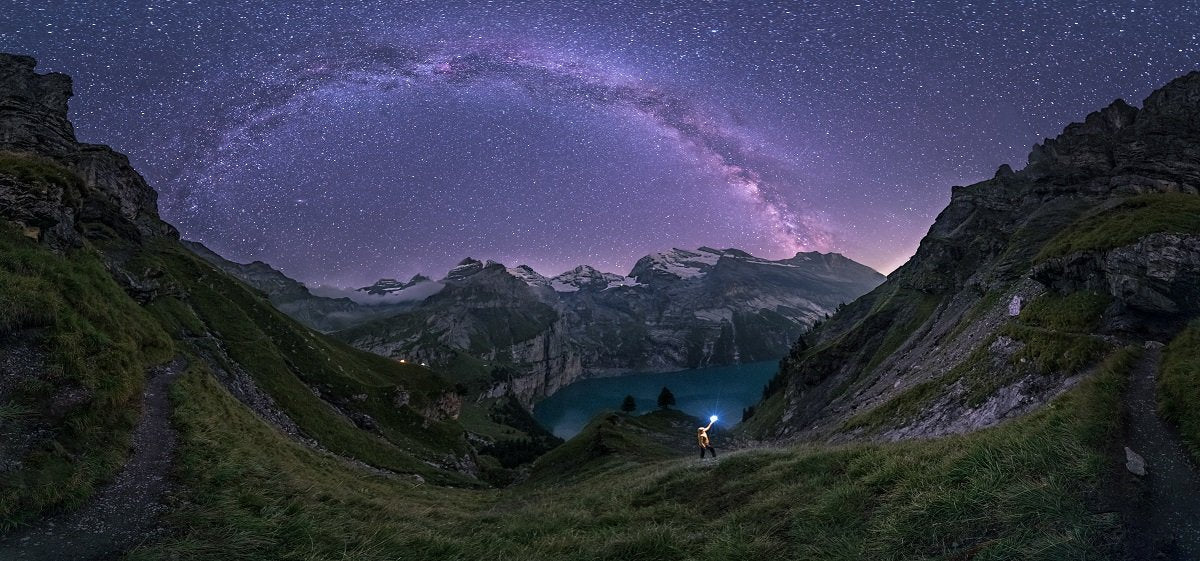
In the first part of our mini-blog article series on "Photographing the Milky Way", we completed the crucial preparation for this discipline, learned about useful apps and tools, and familiarized ourselves with the special equipment for astrophotography. Perhaps you even used the time between the two blog articles to "burn the midnight oil" for a few nights – and have already brought home your first shots of this truly impressive celestial formation.
But even if you prefer to read both texts first and then get started with the implementation, you are warmly welcome! Today, we'll take a look at a magnificent picture of Switzerland's Lake Lucerne and examine the image processing workflow for astrophotography of a proven professional.
All images and background information come from the photographer Anja Kallenbach, who has only been specifically involved in star and Milky Way photography for about 3 years, but has already built an excellent reputation.

For this step-by-step guide, we use Adobe Lightroom, which is also suitable for beginners due to its complexity. Of course, the basic approach also applies to other and much more sophisticated applications. However, with this series of blog articles, we are specifically addressing photography beginners who want to try out different disciplines but do not want to make significant investments right away.
The RAW file of the image already looks quite impressive immediately after opening it in the program window – but it still has considerable room for improvement.

This example also clearly shows that the automatic white balance of the camera used had considerable problems producing a reasonable result. For this reason, it is advisable – as already mentioned in Part 1 – to save RAW files in order to maintain sufficient optimization reserves.
1. Lens Corrections
Anja Kallenbach originally took two exposures, but then realized that her camera's dynamic range allowed her to "work through" further Milky Way images in single-shot mode. As the first improvement measures in post-processing, Anja Kallenbach selects the "Remove Chromatic Aberrations" and "Automatic Lens Correction" functions under the "Lens Corrections" tab.

She photographed Lake Lucerne with a manual lens – so the program could not find and apply a profile for automatic correction. Accordingly, the experienced Milky Way photographer manually adjusts the vignette to largely eliminate the black edges.

2. Histogram
Now Anja Kallenbach carefully examines the histogram of the astro shot. The curve is not abruptly cut off on the left side – as mentioned in Part 1, this should be kept in mind during the actual shoot – nevertheless, the overall image still appears quite dark. Ms. Kallenbach will address this aspect when adjusting the white balance, but for now, she focuses on the contrast (+5) to set better conditions for later adjusting the white and black points. Ms. Kallenbach "pulls" the shadows up until she likes the overall brightness more and then adjusts the white and black "poles." To do this, she clicks on the corresponding slider while holding down the "Alt" key – this allows her to only view and correct the "problem areas" in the image.

Histogram summary
- Adjust vignette manually
- First address contrast, then white balance
- Holding down the "Alt" key directly shows the "problem areas" in the image
3. Highlights
In the next step, the astrophotographer dedicates herself to the highlights – which she naturally wants to keep in the upper area as stars, but reduce in the lower part in the form of bright streetlights. Otherwise, the artificial lighting along the lake would undeservedly overshadow the natural luminosity of the celestial bodies. In the lower image area, Ms. Kallenbach sets a gradient and partially reduces the brightness without affecting the equally luminous mountain peaks.

After that, she applies a second gradient filter (by clicking on "New"), slightly brightens the lower area using "Exposure," and also raises the shadows.
Summary of Brightness Distribution
- First determine which light aspects of the image you want to retain, reduce, or enhance.
- Gradient filters are excellent for realizing your own vision.
4. White Balance
In the next step, the white balance "finally" gets its turn, after having to give way to several other functions. Instead of getting bogged down in fine-tuning at the beginning, Anja Kallenbach follows the principle of "Go big or go home!" and rigorously sets the "Saturation" and "Vibrance" sliders to 100 percent. The intermediate result may be called "eye candy" by some professionals, but it helps immensely in achieving the most natural white balance setting possible.

With the sliders, the astrophotography expert then brings all color components to as balanced a level as possible – currently, the magenta component still predominates, so Anja Kallenbach counteracts with the complementary color green and adds a little blue directly.

The photographer is still not satisfied with this correction step – the sky still looks far too green, the purple in the foreground appears much too artificial. To make further progress, Anja Kallenbach sets the Vibrance to "7" and the Saturation completely to "0". Then she adds another gradient in the sky area and increases the purple (magenta) and blue components. At the same time, she gives the stars more impact again by dragging the white point slider to the right.


The "Clarity" and "Exposure" points are now also boosted.
White balance summary
- For better assessment, feel free to push Vibrance and Saturation "to the limit" and then adjust individually.
- Work with gradients again and make the final fine-tuning with the white slider.
5. Image Noise and Sharpness
Anja Kallenbach then tackles "image noise" and "sharpness," two particularly relevant issues in star photography.
To do this, she first goes to the "Details" tab. These two areas seem to be connected by an invisible string – an increase in sharpness unfortunately always leads to an increase in image noise, which is why the experienced professional photographer chooses a comparatively moderate value. With "35," the sharpness improves without the image noise getting completely out of hand.
In addition, Ms. Kallenbach precisely defines the area of effect – and moves the "Masking" slider while holding down the "Alt" key to precisely delimit the image elements in the exaggerated black-and-white contrast that should benefit from the additional sharpness.
As a result, she is satisfied that the outlines of the mountains and the most dominant stars are still visible; she will address the Milky Way itself in a subsequent step. However, she first tackles image noise with Luminance – with a value between 30 and 40, according to the enthusiastic astrophotographer's experience, pixel noise can largely be brought under control.
Using the "Contrast" tab, Ms. Kallenbach then retrieves a few image details that wanted to disappear during the previous editing. Some cameras also produce so-called "color noise," which is caused by pixels that are not enthusiastic about the color of their neighbors and want to stand out accordingly. Ms. Kallenbach's camera behaves very well in this area, so only a value between 5 and 10 needs to be applied here.

Summary of Sharpness and Image Noise
- Sharpness and image noise are directly related – the goal here is to find the best possible compromise without going to an extreme.
- To minimize color noise from the outset, keep this aspect in mind when choosing a camera.
6. Hue
The sky's basic color doesn't yet match the star photographer's taste – to adjust the mood to her liking, she selects the "Hue" menu item under the "HSL/Color" tab. First, click with the left mouse button in the field with the small circles – and then directly into the image area that could benefit from an adjustment. The hue can then be changed intuitively by moving the mouse up or down.


7. Custom Brushes
Once the rough parameters have been adjusted to Anja Kallenbach's preferences, she turns to what she considers the most important component of the image – the Milky Way. For this purpose, the passionate night and sky photographer "creates" her own brush.
The corresponding detailed settings can be seen in the following screenshot:

Anja Kallenbach then uses the individually designed brush tip to edit the Milky Way to the desired extent. If the effects are rather subtle, you can activate the "Overlay for selected mask" checkbox to display the areas you have already improved.

However, in Anja Kallenbach's opinion, the bright center – the core of the galaxy – still doesn't stand out enough after the initial optimization. Instead of simply repeating the process with the same brush, the expert in celestial photography creates a second brush to proceed more precisely and targeted. The corresponding parameters are shown in the following screenshot:

With these values, Anja Kallenbach now corrects only the central area around the center of the Milky Way. After this step, the image almost exactly matches the photographer's demanding expectations. Anja Kallenbach knows very well that exaggerated post-processing can not only impair the basic character of the image but also question the authenticity of the captured moment. For the final touch, Anja Kallenbach therefore "crafts" two very subtle brushes, with which she only "applies" a delicate tint to the particularly bright areas of the Milky Way...


Before the Milky Way photo of Lake Lucerne finally receives the creator's final approval, a minimal tone curve correction is performed...

...and the distracting airplane is removed with the "Spot Removal" tool.

Before-and-after comparison
The before-and-after comparison confirms the conviction that in the professional field of Milky Way photography, every "raw photo" benefits from more or less extensive post-processing, but this should never lead to exaggerations or actual fantasy images – otherwise, the documentary character would no longer be given.
Anja Kallenbach's main goal is to capture and convey the beauty of nature and the galaxy surrounding us. She has undoubtedly succeeded once again with this very impressive example. And thanks to the carefully documented procedure, the individual steps can also be understood by photographers who have only recently – or perhaps not at all – dealt with the topic of Milky Way photography.
Summary of Final Optimization and Removal of Disturbances
- Always perform image manipulations and optimizations very subtly.
- For partial correction or to remove distracting image elements, create individual brushes and/or work with subtle gradients.

Conclusion on Milky Way photography
Have we motivated you to perhaps try your hand at star photography sometime soon? Or as a true professional in celestial photography, have you already captured some great Milky Way images – and perhaps didn't know all the editing steps in detail?
Then we look forward to your personal insider tips – and especially, of course, to great examples of your previous work! Share your experiences with us on Facebook or Instagram!
Share:
Photographing the Milky Way: Anja Kallenbach's Guide
Lensball Photography: The Complete Guide to Photos with a Lensball